This guide covers editing metadata and renaming music files using metadata. It will make music easier to find and more compatible for many of the media players available. This guide uses a program called Tag&Rename. You do have to pay for it but there is a free trial that can be downloaded. Most other tagging software is very similar and there are also various other free options available.
It is important to note that FLAC uses “Vorbis” tags and MP3 uses “ID3” tags.
First off download and install Tag&Rename.
Load up the program and using the folder list on the left navigate to the folder containing the music you want to tag. This is highlighted in the screenshot below.

The files will appear on the right of the screen. As you can see it just shows the file name but no metadata. This is what we will add next.
Click on the “View” menu and then “Toolbars“. The tools menu will then appear.

From the tools menu look for the gold CD icon. It should be the first icon.

Now click the CD icon and a menu should popup showing the results found for the files.
Click on one of the results and click on “Get Titles“.
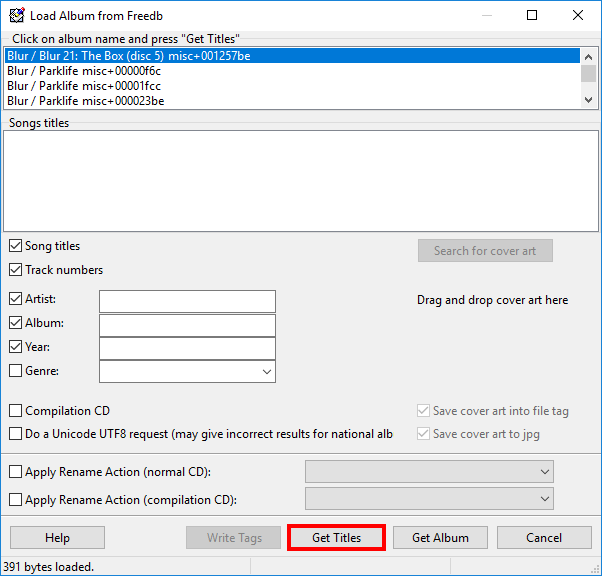
After clicking “Get Titles” the song titles box along with all the other metadata information will be shown.
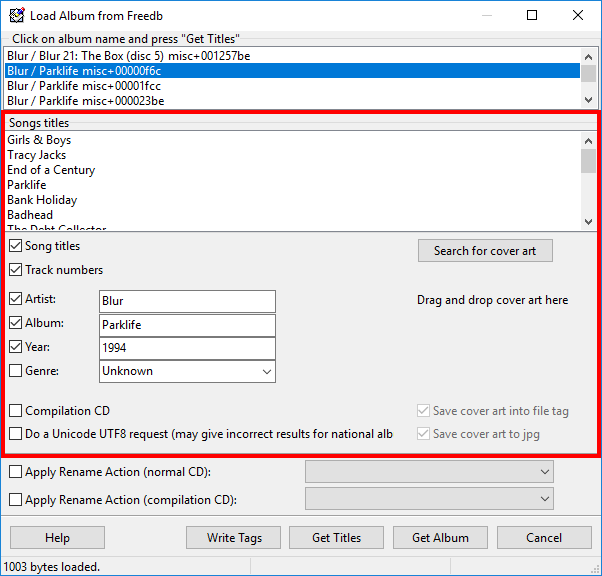
Check that all the information here is correct. You can edit the Artist, Album, Year etc.
Once everything looks good click on “Write Tags“.
It will now take you back to the main program window where you can see all the new tags that have been added to the files.

The next step is optional and will allow you to rename the actual files using the newly added tags.
Click on “Rename Files” at the top of the program window as shown below.

In this window you can specify the naming format you wish to use.
Click on the “Mask Editor” button and the following window will appear.
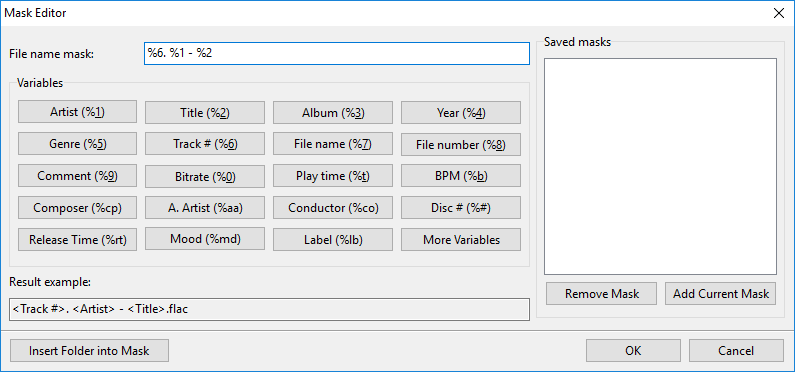
In the example above the naming format is set as:
%6. %1 - %2This will give the following style: 1. Artist Name – Track Title.flac
You can edit this as you like. For example you might not want to put the artist name in the title, in which case you could use: %6. %2
This would give the following filename: 1. Track Title.flac
Once you have the naming style you require press the “Rename” button which is shown below.

You will now see the files shown in the main program window with the new filenames and completed ID3 tags.
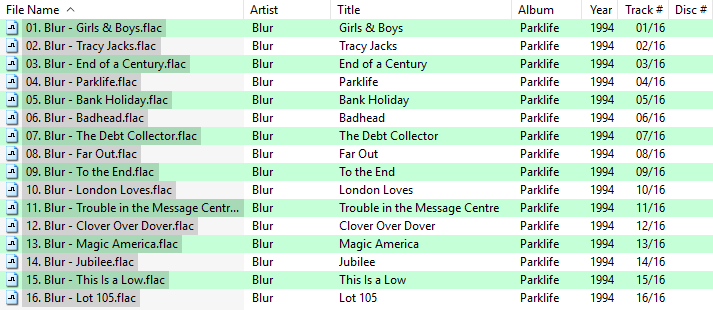
Now you should have some nicely tagged and named files. Open them up in your chosen media player and all the correct tag information should be shown.
This guide will work with various different audio formats such as .mp3, .flac, .wma, .m4a, .ape, .wv and many more.