This guide will cover how to convert FLAC files to MP3 using a free application called foobar2000. First off download and install foobar2000 from HERE. You will also need the Free Encoder Pack which you can download from HERE.
Once installed open up foorbar2000 and click on “Library” from the top menu bar and select “Configure“.

A new window will open. On the left side click on “Advanced” and then “Tagging” from the right side. Click the arrows to expand the sub-trees as shown in the screenshot below.

Once the settings match the screenshot above click on “Apply” and then “OK“.
Next we will convert the files to MP3. Drag the FLAC files into foobar2000 and then right click on them and select “Convert” and then the three dots … as shown below.

From the next menu that appears click on “Output format“.

Click on MP3 (LAME) and then “Edit” as shown below.

Use the quality slider to select the target bitrate required then click on “OK“.

Now click on the “Back” button as shown below.

Next click on “Destination” as shown below.

Setup the options as shown in the screenshot below. Set the name format as: %track% – %title% then click the “Back” button.

Next click on “Other“.
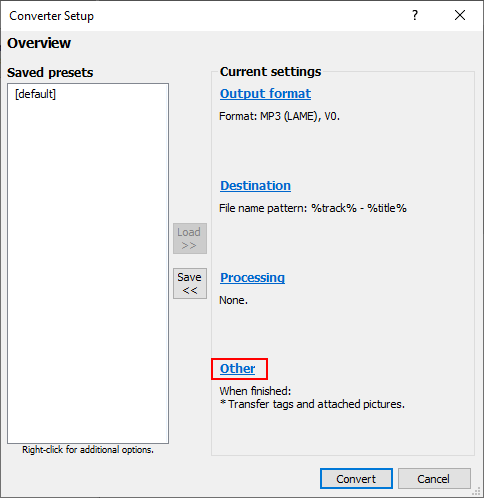
Setup the options as shown in the screenshot below. The option for “Copy other files to the destination folder” is optional. Once everything is set click on “Back“.

Next click on “Save” and give the preset a name.

Once everything is saved click on “Convert” to start converting the files.

After clicking convert a window will appear asking where to save the files. Select the location and click on “Select Folder“. The conversion will now start and the progress will be shown.

When finished the converter output box will appear and the process is complete.

Now all the settings are saved next time you can simply right click on files and choose “Convert” and then select the saved preset as shown below.

If you want to add more presets to convert files to different bitrates or formats this can easily be achieved by following the same steps as before but choosing different outputs.